- Joined
- May 21, 2016
- Messages
- 9
- Reaction score
- 13
Long time lurker, active maybe 10 years ago when v62 was still a thing and the community was growing. Decided to make use of my free time to port over the guide written on Discord. Hopefully this helps more people to get into some sort of mushroom-game dev 
Full credits to the Swordie team & contributors, especially Asura and Sjonnie who originally wrote this guide.
Swordie Discord:
Downloads:
Guide:
Debugging Common Issues
If I have the time I will try to answer questions to be best of my ability. glhf, stay safe.
Full credits to the Swordie team & contributors, especially Asura and Sjonnie who originally wrote this guide.
Swordie Discord:
To view the content, you need to sign in or register
Downloads:
App Downloads (install before proceeding):
Maple Story v176 Setup (install before proceeding):
Other Downloads:
Source Tree:
IntelliJ (Community version):
MySQL Workbench:
WAMP Server:
Java Dev Kit 1.8uXX:
WZ Dump:
To view the content, you need to sign in or register
IntelliJ (Community version):
To view the content, you need to sign in or register
MySQL Workbench:
To view the content, you need to sign in or register
WAMP Server:
To view the content, you need to sign in or register
Java Dev Kit 1.8uXX:
To view the content, you need to sign in or register
WZ Dump:
To view the content, you need to sign in or register
To view the content, you need to sign in or register
To view the content, you need to sign in or register
To view the content, you need to sign in or register
To view the content, you need to sign in or register
To view the content, you need to sign in or register
To view the content, you need to sign in or register
To view the content, you need to sign in or register
WZ Codes:
To view the content, you need to sign in or register
Guide:
Step 1: Clone Repository
Step 2: Dumping WZ Files
Step 3: Create your Database
Step 4: Running the server
Step 5: Connecting to your server
1. Open Source Tree
2. Click File > Clone/New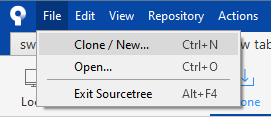

3. Enter the details as follows:
2. Click File > Clone/New
3. Enter the details as follows:
- Source Path:
To view the content, you need to sign in or register
- Destination Path: <choose where you want to save it>
- Name: swordie
- Local Folder: [Root]
1. **Make sure you have v176 installed before proceeding**
2. Open the folder where you saved the server files
3. Create 2 new empty folders named “wz” and “dat”
4. Open up WZ Dumper & select “Dump All WZ Files from Folder”

5. Choose the folder where you installed v176
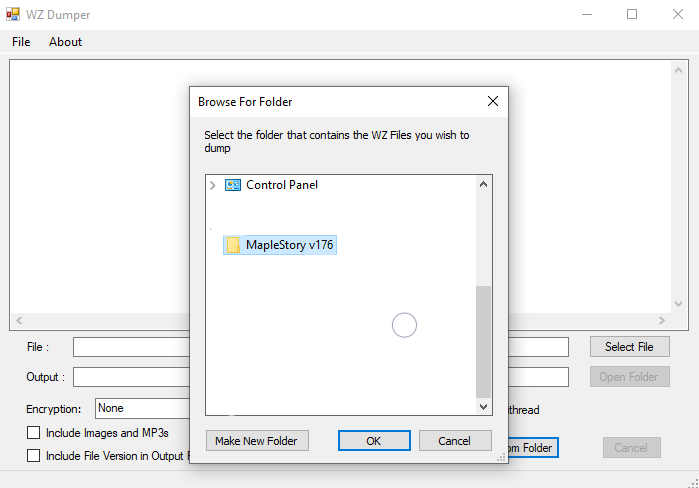

6. Next, choose the wz folder that you created in source folder
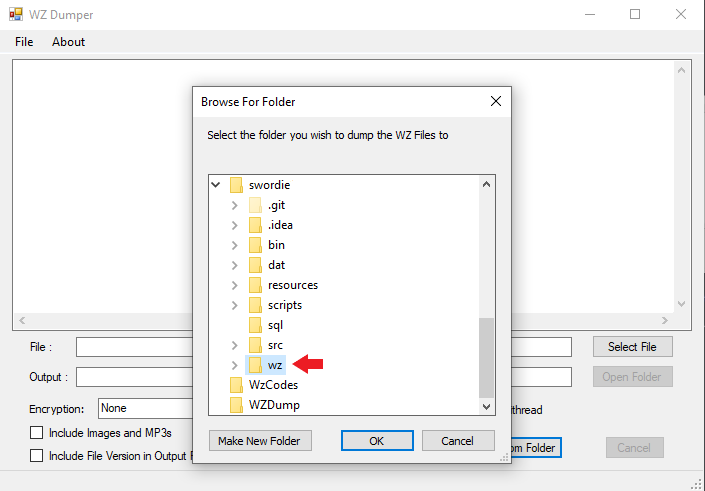

Note: this step will take some time, so you can proceed with the next steps while you wait.
2. Open the folder where you saved the server files
3. Create 2 new empty folders named “wz” and “dat”
4. Open up WZ Dumper & select “Dump All WZ Files from Folder”
5. Choose the folder where you installed v176
6. Next, choose the wz folder that you created in source folder
Note: this step will take some time, so you can proceed with the next steps while you wait.
Step 3: Create your Database
1. Install (if you haven’t already) and run WAMP server. Make sure it is lit green in your bottom right sidebar.
2. Open MySQL and add a new connection by clicking the + sign.

3. Fill up the details as seen below:

4. Click on your newly created connection

5. Create a new schema

6. Name the schema “swordie”, don’t touch any of the other options and then click Apply and Finish.

7. Open script file

8. Navigate to <your source folder>/sql/ and select InitTables_characters.sql

9. Double click the swordie schema so it becomes bold

10. Execute the file

11. Once done, you will need to run the rest of the scripts in the sql folder.
2. Open MySQL and add a new connection by clicking the + sign.
3. Fill up the details as seen below:
4. Click on your newly created connection
5. Create a new schema
6. Name the schema “swordie”, don’t touch any of the other options and then click Apply and Finish.
7. Open script file
8. Navigate to <your source folder>/sql/ and select InitTables_characters.sql
9. Double click the swordie schema so it becomes bold
10. Execute the file
11. Once done, you will need to run the rest of the scripts in the sql folder.
Step 4: Running the server
**NOTE**: your WZ files must have finished dumping (see step 2) before proceeding.
1. Open IntelliJ
2. Click Open or Import

3. Select the swordie source folder and open it. Once open, a project window will appear on the left sidebar.

4. From this sidebar open src > main > java . If the ‘java’ folder isn’t marked blue, right-click it > Mark Directory as > Sources Root

5. Navigate to src > main > java > net.swordie.ms > Server. Right-click and run server.

6. It will take awhile to run the server for the first time as the dat files have to be generated. Be patient and cross your fingers.
7. Once you see something like this:

Your server should be up and running.
8. Restart the server if it is your first time running it
1. Open IntelliJ
2. Click Open or Import
3. Select the swordie source folder and open it. Once open, a project window will appear on the left sidebar.
4. From this sidebar open src > main > java . If the ‘java’ folder isn’t marked blue, right-click it > Mark Directory as > Sources Root
5. Navigate to src > main > java > net.swordie.ms > Server. Right-click and run server.
6. It will take awhile to run the server for the first time as the dat files have to be generated. Be patient and cross your fingers.
7. Once you see something like this:
Your server should be up and running.
8. Restart the server if it is your first time running it
Step 5: Connecting to your server
1. Refer to Bluntest’s method: http://forum.ragezone.com/f921/v176-client-bypass-1164436/ OR use the updated one I created here: http://forum.ragezone.com/f921/v176-moonlight-1-5-client-1177022/ (this one allows you to create an account from within the launcher)
2. Download the files, extract and put them into your v176 folder. Be sure to back up the originals
3. Delete the Blackcipher folder.
4. Run MoonLight as administrator
5. From your taskbar, right-click the little Maple icon and click play.

6. Sign in using the pre-made account:
2. Download the files, extract and put them into your v176 folder. Be sure to back up the originals
3. Delete the Blackcipher folder.
4. Run MoonLight as administrator
5. From your taskbar, right-click the little Maple icon and click play.
6. Sign in using the pre-made account:
Code:
Username: admin
Password: admin
PIC: 111 111NGS Initialization Error possible fixes:
- Make sure you've deleted your BlackCipher folder
- Update & restart your computer
- Disable your anti-virus (AVG/Norton/Windows Defender/etc) and whilelist the enter folder where your MS is installed
- Open Task Manager & ensure that no MapleStory related processes are running (e.g. MapleStory.exe, BlackCipher, Nexon Game Security)
Last edited: