- Joined
- Feb 24, 2009
- Messages
- 590
- Reaction score
- 63
This has probably already been done, but I saw a help thread on this and no one seemed to know how to do this so I'm making a guide on it. Changing the music is actually really easy.
WARNING: patching your client will overwrite the settings we are creating, and your music will no longer play
This used to be a little bit easier, but eflyff changed the client to read .ogg files instead of .mp3 files. So, that adds an extra step. Most of us store our music in .mp3 or .wma format, not .ogg. So, we'll have to convert our song we want to use to .ogg
Lucky for us, there's a few free ones. I'll be using WinLAME for this guide, but if you alredy have a favorite converter that supports .mp3 -> .ogg conversions, feel free to use that.
The first thing you need is the WinLAME installer:
Run the .msi file you just downloaded and install winLAME
Installing winLAME
Now that it's installed, let's open it up and get started.

Now that it's open, we need to get our song file into the client's music folder. For the sake of this demo, rename your song to "opening_music_test.mp3". You'll see why later.
Converting a file using winLAME
Now that we have a .ogg file to use, open up default.bgm (in the Music folder) with notepad. The easiest way to do this is to open up notepad, then drag default.bgm into it. You should see something like this.
default.bgm
For this tutorial, I'm going to change the background music at the login scrren. Look at the line that starts with BGM_TITLE
BGM_TITLE "music\BgmDu1Mystery.ogg" // "music\BgmTitle.ogg"
"BgmDu1Mystery.ogg" is the current music that plays at the login screen. Technically, we could delete the original and change our file's name from "opening_music_test.ogg" to that, but that's too much work. There's a much easier way.
Edit the line so that it looks like this:
BGM_TITLE "music\opening_music_test.ogg" // "music\BgmTitle.ogg"
In notepad, click File->Save. Log into the game. Unless you have sound disabled, you should now hear your new background music.
Obviously, you're not limited to the name "opening_music_test.ogg" or just changing the title music. Experiment with the other music files in default.bgm and find out what they do. You can change the music for the whole client if you're ambitious enough
Copyright crap
I don't care if you post this on other forums, but if you do, give me credit for my guide and post it in its entirety.
WARNING: patching your client will overwrite the settings we are creating, and your music will no longer play
This used to be a little bit easier, but eflyff changed the client to read .ogg files instead of .mp3 files. So, that adds an extra step. Most of us store our music in .mp3 or .wma format, not .ogg. So, we'll have to convert our song we want to use to .ogg
Lucky for us, there's a few free ones. I'll be using WinLAME for this guide, but if you alredy have a favorite converter that supports .mp3 -> .ogg conversions, feel free to use that.
The first thing you need is the WinLAME installer:
To view the content, you need to sign in or register
Run the .msi file you just downloaded and install winLAME
Installing winLAME
Opening screen of the installer
The default install path should be fine. If not, you can click the button that says "Change..." to change the install path
Click "Install" to install winLAME
It's installing. Go use the bathroom, get a cup of coffee, snort some crack, whatever floats your boat.
If you see this screen, that means it installed successfully.
To view the content, you need to sign in or register
The default install path should be fine. If not, you can click the button that says "Change..." to change the install path
To view the content, you need to sign in or register
Click "Install" to install winLAME
To view the content, you need to sign in or register
It's installing. Go use the bathroom, get a cup of coffee, snort some crack, whatever floats your boat.
To view the content, you need to sign in or register
If you see this screen, that means it installed successfully.
To view the content, you need to sign in or register
Now that it's installed, let's open it up and get started.
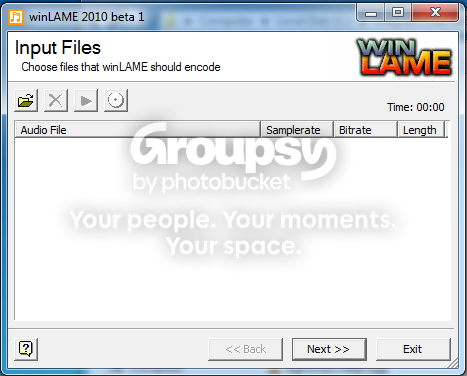
Now that it's open, we need to get our song file into the client's music folder. For the sake of this demo, rename your song to "opening_music_test.mp3". You'll see why later.
Converting a file using winLAME
Now, drag the song into winLAME's textbox. If you don't wanna drag it, you can press the folder button and point to the song that way.
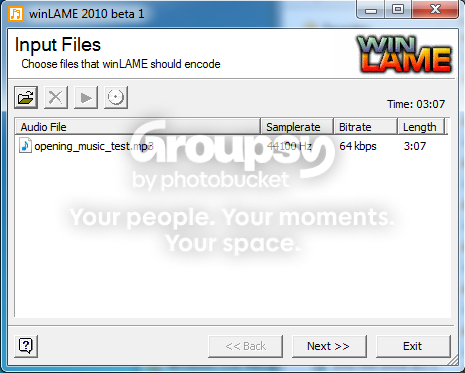
Now winLAME should look like this. If it doesn't, you did something wrong.
As you probably already guessed, you can convert more than one file at a time. However, that's beyond the scope of this guide.
Click "Next >>". You'll see this screen:
Your info probably looks a little different from mine, but it's still not the correct info you need. Adjust it so that it looks like this:
Press the "Next >>" button. You'll now see a screen named "Ogg Vorbis Settings".
The default settings are acceptable. Press the "Next >>" button. You'll now see a screen that says "Encoding". Press the play button.
Now it's encoding. This only takes around 30 seconds.
The file has been converted to .ogg format. Click "Exit" to close winLAME. We won't be needing it for the rest of the tutorial.
Now winLAME should look like this. If it doesn't, you did something wrong.
As you probably already guessed, you can convert more than one file at a time. However, that's beyond the scope of this guide.
Click "Next >>". You'll see this screen:
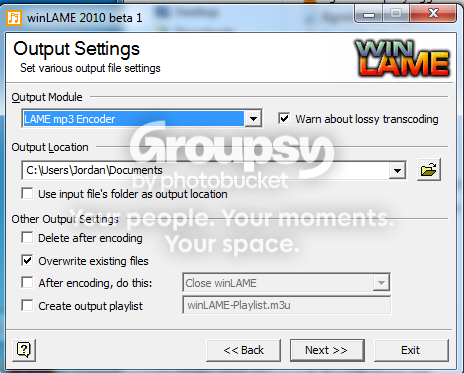
Your info probably looks a little different from mine, but it's still not the correct info you need. Adjust it so that it looks like this:
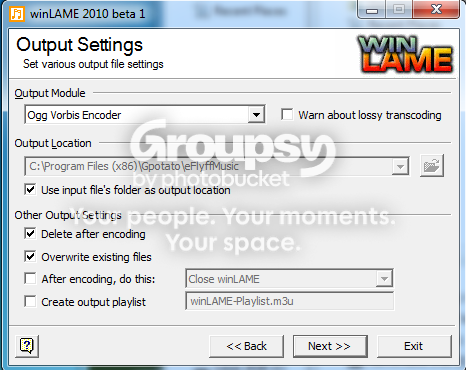
Press the "Next >>" button. You'll now see a screen named "Ogg Vorbis Settings".
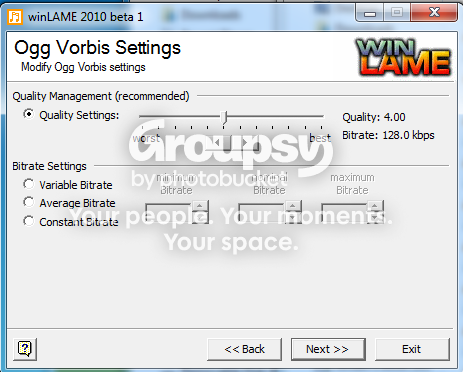
The default settings are acceptable. Press the "Next >>" button. You'll now see a screen that says "Encoding". Press the play button.
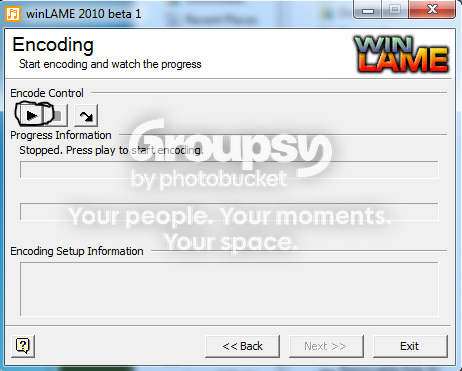
Now it's encoding. This only takes around 30 seconds.
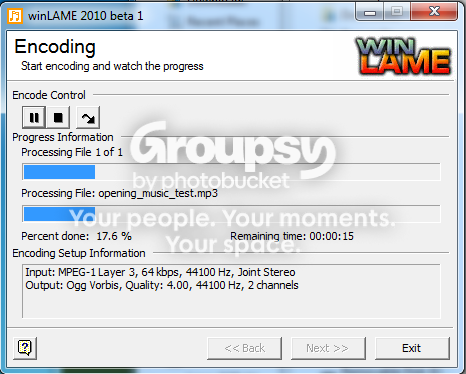
The file has been converted to .ogg format. Click "Exit" to close winLAME. We won't be needing it for the rest of the tutorial.
Now that we have a .ogg file to use, open up default.bgm (in the Music folder) with notepad. The easiest way to do this is to open up notepad, then drag default.bgm into it. You should see something like this.
default.bgm
BGM_TITLE "music\BgmDu1Mystery.mp3" // "music\BgmTitle.ogg"
BGM_TO_FLARIS "music\BgmTo1Flaris.ogg" // "music\BgmTo1Flaris.ogg"
BGM_TO_SAINTMORNING "music\BgmTo2Music.ogg" // saintmonring
BGM_TO_DARKON "music\BgmFi4Darkon2.ogg"
BGM_DU_MYSTERY "music\BgmDu1Mystery.ogg"
BGM_DU_CREEP "music\BgmDu2Creep.ogg"
BGM_DU_TERROR "music\BgmDu3Terror.ogg"
BGM_TH_GENERAL "music\BgmTh1General.ogg"
BGM_TH_LACHRYMOSE "music\BgmTh2Lachrymose.ogg"
BGM_TH_RETURN "music\BgmTh3Return.ogg"
BGM_TH_TEMPLE "music\BgmTh4Temple.ogg"
BGM_TH_PLAYGROUND "music\BgmTh5Playground.ogg"
BGM_TH_FLYING "music\BgmTh6Flying.ogg"
BGM_TH_MASKBALL "music\BgmTh7Maskball.ogg"
BGM_BA_FLARIS "music\BgmBaGeneral.ogg"
BGM_BA_CRISIS "music\BgmBaCrisis.ogg"
BGM_EV_LIGHTWING "music\BgmEvLightwing.ogg"
BGM_EV_HEAVYWING "music\BgmEvHeavywing.ogg"
BGM_EV_START "music\BgmEvStart.ogg"
BGM_EV_END "music\BgmEvEnd.ogg"
BGM_IN_BOSS "music\BgmInBoss.ogg"
BGM_IN_DEATH "music\BgmInDeath.ogg"
BGM_IN_LEVELUP "music\BgmInLevelUp.ogg"
BGM_IN_LEVEL "music\BgmInLevelUp.ogg" //"music\BgmInProfession.ogg"
BGM_IN_FITUP "music\BgmInFitup.ogg"
BGM_IN_COMPANY "music\BgmInCompany.ogg"
// Ãß°¡ ÀüÅõ À½¾Ç
BGM_BA_SAINTMORNING "music\BgmBa3Saintmorning.ogg"
BGM_BA_DARKON "music\BgmBa4Darkon.ogg"
// Ãß°¡ ´øÁ¯ À½¾Ç
BGM_DU_INVISIBLE "music\Bgm4DuDarkon.ogg"
// Ãß°¡ ÇÊµå ¹ÂÁ÷
BGM_FI_FLARIS "music\BgmFi1Flaris.ogg"
BGM_FI_SAINTMORNING "music\BgmTh3Return.ogg"
BGM_FI_DARKON1 "music\BgmFi3Darkon1.ogg"
BGM_FI_DARKON2 "music\BgmFi4Darkon2.ogg"
BGM_FI_DARKON3 "music\BgmFiDarkon.ogg"
// Ãß°¡ npc À½¾Ç
BGM_NPC_HORROR "music\BgmNPCHorror.ogg"
BGM_NPC_HORROR2 "music\BgmNPCHorror2.ogg"
BGM_NPC_MILD "music\BgmNPCMild.ogg"
BGM_NPC_SAD "music\BgmNPCSad.ogg"
BGM_NPC_SECRET "music\BgmNPCFiSecret.ogg"
BGM_NPC_SOLEMN "music\BgmNPCFiSolemn.ogg"
BGM_NPC_SOLEMN2 "music\BgmNPCFiSolemn2.ogg"
BGM_NPC_ACCOMPLISH "music\BgmNPCAccomplish.ogg"
BGM_TO_FLARIS "music\BgmTo1Flaris.ogg" // "music\BgmTo1Flaris.ogg"
BGM_TO_SAINTMORNING "music\BgmTo2Music.ogg" // saintmonring
BGM_TO_DARKON "music\BgmFi4Darkon2.ogg"
BGM_DU_MYSTERY "music\BgmDu1Mystery.ogg"
BGM_DU_CREEP "music\BgmDu2Creep.ogg"
BGM_DU_TERROR "music\BgmDu3Terror.ogg"
BGM_TH_GENERAL "music\BgmTh1General.ogg"
BGM_TH_LACHRYMOSE "music\BgmTh2Lachrymose.ogg"
BGM_TH_RETURN "music\BgmTh3Return.ogg"
BGM_TH_TEMPLE "music\BgmTh4Temple.ogg"
BGM_TH_PLAYGROUND "music\BgmTh5Playground.ogg"
BGM_TH_FLYING "music\BgmTh6Flying.ogg"
BGM_TH_MASKBALL "music\BgmTh7Maskball.ogg"
BGM_BA_FLARIS "music\BgmBaGeneral.ogg"
BGM_BA_CRISIS "music\BgmBaCrisis.ogg"
BGM_EV_LIGHTWING "music\BgmEvLightwing.ogg"
BGM_EV_HEAVYWING "music\BgmEvHeavywing.ogg"
BGM_EV_START "music\BgmEvStart.ogg"
BGM_EV_END "music\BgmEvEnd.ogg"
BGM_IN_BOSS "music\BgmInBoss.ogg"
BGM_IN_DEATH "music\BgmInDeath.ogg"
BGM_IN_LEVELUP "music\BgmInLevelUp.ogg"
BGM_IN_LEVEL "music\BgmInLevelUp.ogg" //"music\BgmInProfession.ogg"
BGM_IN_FITUP "music\BgmInFitup.ogg"
BGM_IN_COMPANY "music\BgmInCompany.ogg"
// Ãß°¡ ÀüÅõ À½¾Ç
BGM_BA_SAINTMORNING "music\BgmBa3Saintmorning.ogg"
BGM_BA_DARKON "music\BgmBa4Darkon.ogg"
// Ãß°¡ ´øÁ¯ À½¾Ç
BGM_DU_INVISIBLE "music\Bgm4DuDarkon.ogg"
// Ãß°¡ ÇÊµå ¹ÂÁ÷
BGM_FI_FLARIS "music\BgmFi1Flaris.ogg"
BGM_FI_SAINTMORNING "music\BgmTh3Return.ogg"
BGM_FI_DARKON1 "music\BgmFi3Darkon1.ogg"
BGM_FI_DARKON2 "music\BgmFi4Darkon2.ogg"
BGM_FI_DARKON3 "music\BgmFiDarkon.ogg"
// Ãß°¡ npc À½¾Ç
BGM_NPC_HORROR "music\BgmNPCHorror.ogg"
BGM_NPC_HORROR2 "music\BgmNPCHorror2.ogg"
BGM_NPC_MILD "music\BgmNPCMild.ogg"
BGM_NPC_SAD "music\BgmNPCSad.ogg"
BGM_NPC_SECRET "music\BgmNPCFiSecret.ogg"
BGM_NPC_SOLEMN "music\BgmNPCFiSolemn.ogg"
BGM_NPC_SOLEMN2 "music\BgmNPCFiSolemn2.ogg"
BGM_NPC_ACCOMPLISH "music\BgmNPCAccomplish.ogg"
For this tutorial, I'm going to change the background music at the login scrren. Look at the line that starts with BGM_TITLE
BGM_TITLE "music\BgmDu1Mystery.ogg" // "music\BgmTitle.ogg"
"BgmDu1Mystery.ogg" is the current music that plays at the login screen. Technically, we could delete the original and change our file's name from "opening_music_test.ogg" to that, but that's too much work. There's a much easier way.
Edit the line so that it looks like this:
BGM_TITLE "music\opening_music_test.ogg" // "music\BgmTitle.ogg"
In notepad, click File->Save. Log into the game. Unless you have sound disabled, you should now hear your new background music.
Obviously, you're not limited to the name "opening_music_test.ogg" or just changing the title music. Experiment with the other music files in default.bgm and find out what they do. You can change the music for the whole client if you're ambitious enough
Copyright crap
I don't care if you post this on other forums, but if you do, give me credit for my guide and post it in its entirety.
Last edited: