- Joined
- Feb 26, 2010
- Messages
- 1,395
- Reaction score
- 787
I wrote this on another forum, but since I don't want to advertise and you guys won't probably find it by yourselves I'll copy it here too
This is what you need to do it :
Yamachi's Templates and scripts-Download them from here.
Photoshop Or GIMP with installed DDS Plugin.
You can find the .dds plugins here
1:Editing weapons !
Open the .efx file of the desired weapon, in this case, I picked Mithril Blade.
You can find the normal weapons .efx files in cabalfolder\data\FX\EFX\Arms
Open then *.EFX file in the 010 editor

Open the EFXTemplate in the editor ( CTRL + F5 and browse for it), then run it by pressing F5.
Once the template was ran, click on Objects, and expand all of them, you will now see what files make up the weapon.
As you can see, the path is also there. cabalfolder\data\item\arms\1h_bld_07.ebm for example.
Go to that folder, open the files in 010 editor, and now open the .EBM template and run it on them.
Expand the materials line.
Now, it's very important that you select the texturedata line with your mouse, thats the part with the .dds file, after you select it, go to File -> Special -> Save selection.
Save as the name there (1h_sow_08_a.dds) important to save with the .dds extension !
After that, open the .dds file in either Photoshop or Gimp and do your magic.
After you're done editing, open the EBM file in 010 editor again (if you closed it ) and run the replace.texture script.
The material index starts from 0 to X. in this case, our files index is 0, so we leave it like that, and press OK, select the edited *.dds file from your Hard Drive, and click OK. The script will edit what's necessary by itself, so after you've done that, just hit CTRL+S to save the file, and you're done
This is what you need to do it :
To view the content, you need to sign in or register
-Don't ask me for a crack, use google !Yamachi's Templates and scripts-Download them from here.
Photoshop Or GIMP with installed DDS Plugin.
You can find the .dds plugins here
To view the content, you need to sign in or register
- for Photoshop, get the 32bit one.
To view the content, you need to sign in or register
- for Gimp.1:Editing weapons !
Open the .efx file of the desired weapon, in this case, I picked Mithril Blade.
You can find the normal weapons .efx files in cabalfolder\data\FX\EFX\Arms
Open then *.EFX file in the 010 editor
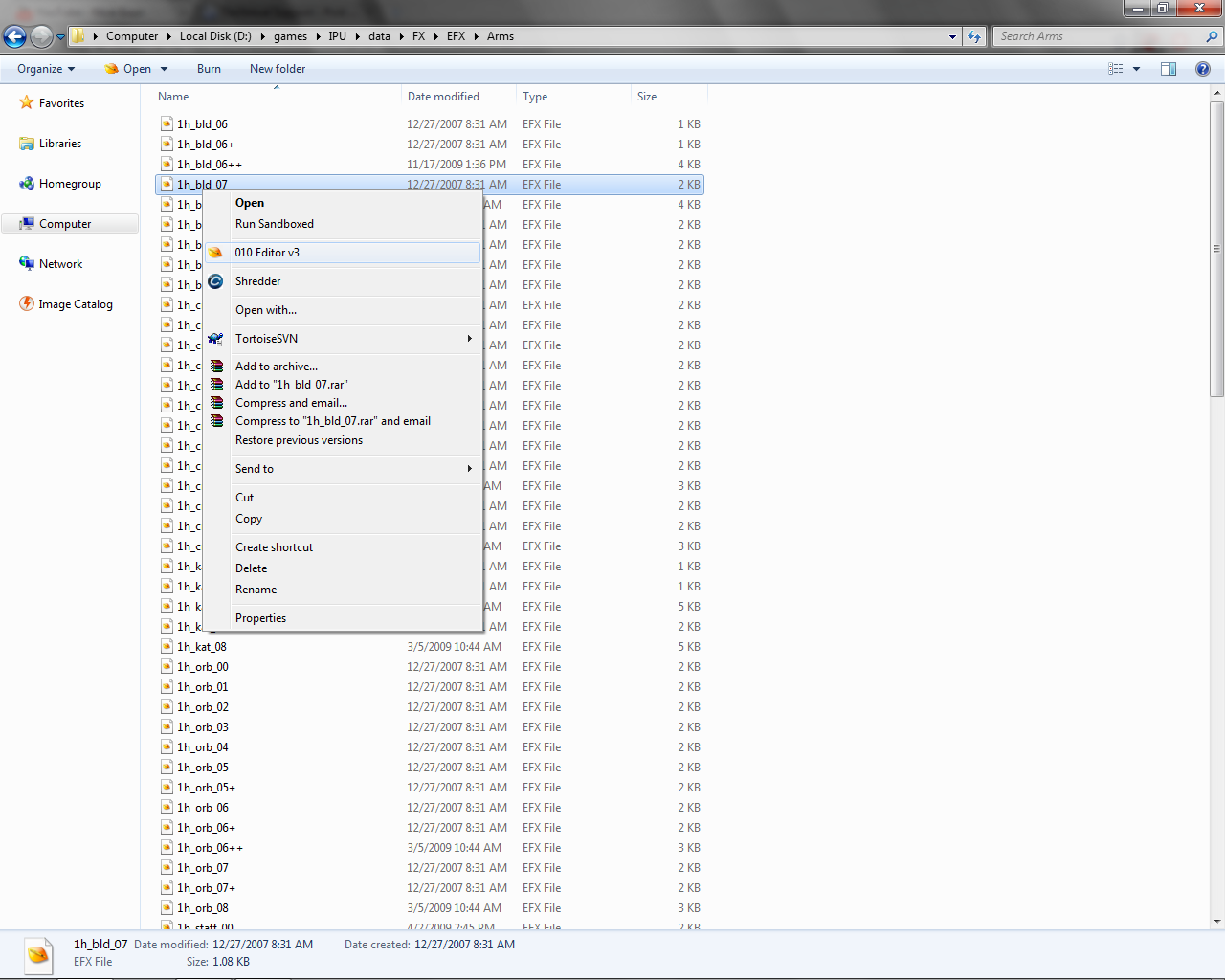
Open the EFXTemplate in the editor ( CTRL + F5 and browse for it), then run it by pressing F5.

Once the template was ran, click on Objects, and expand all of them, you will now see what files make up the weapon.

As you can see, the path is also there. cabalfolder\data\item\arms\1h_bld_07.ebm for example.
Go to that folder, open the files in 010 editor, and now open the .EBM template and run it on them.
Expand the materials line.
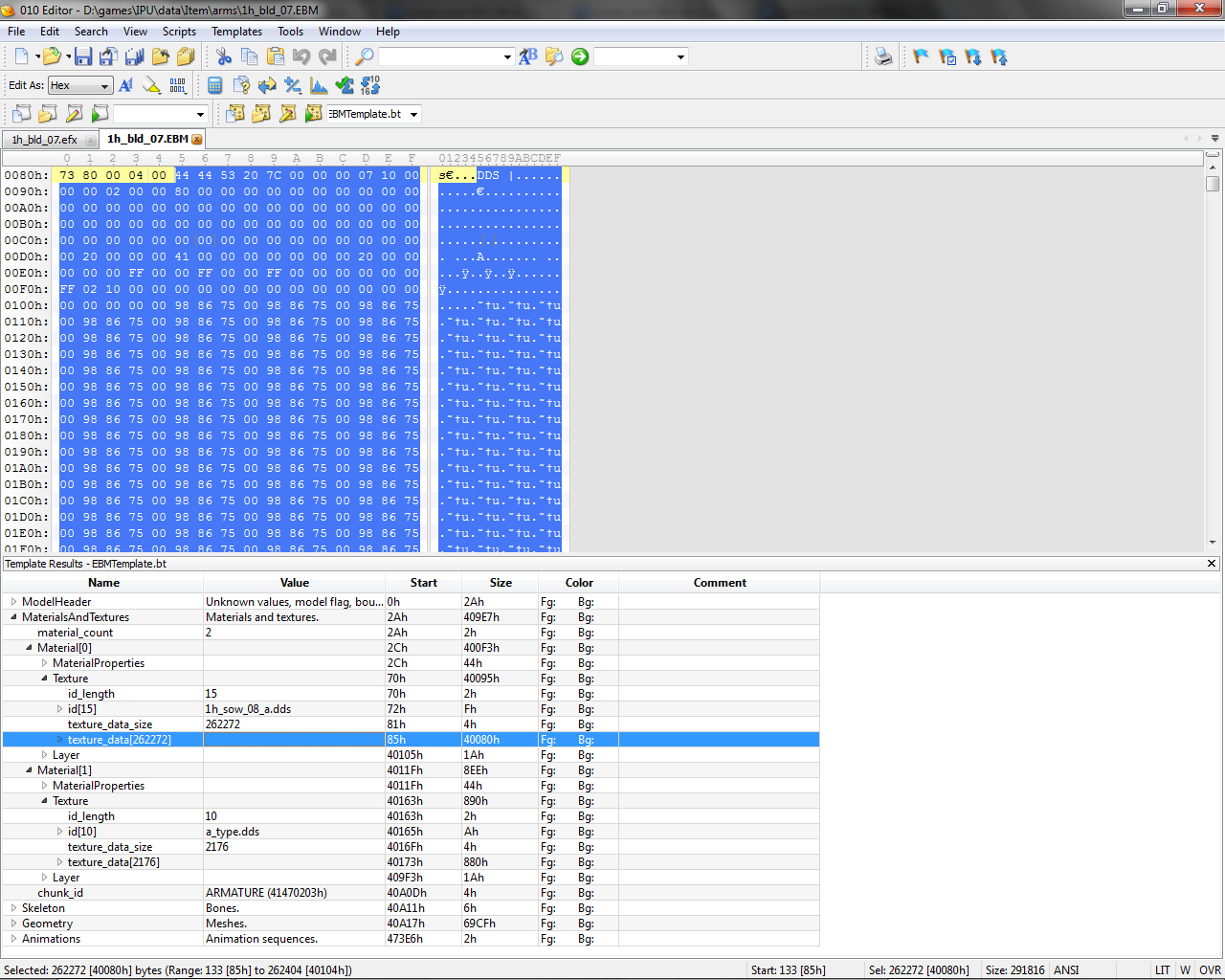
Now, it's very important that you select the texturedata line with your mouse, thats the part with the .dds file, after you select it, go to File -> Special -> Save selection.

After that, open the .dds file in either Photoshop or Gimp and do your magic.
After you're done editing, open the EBM file in 010 editor again (if you closed it ) and run the replace.texture script.
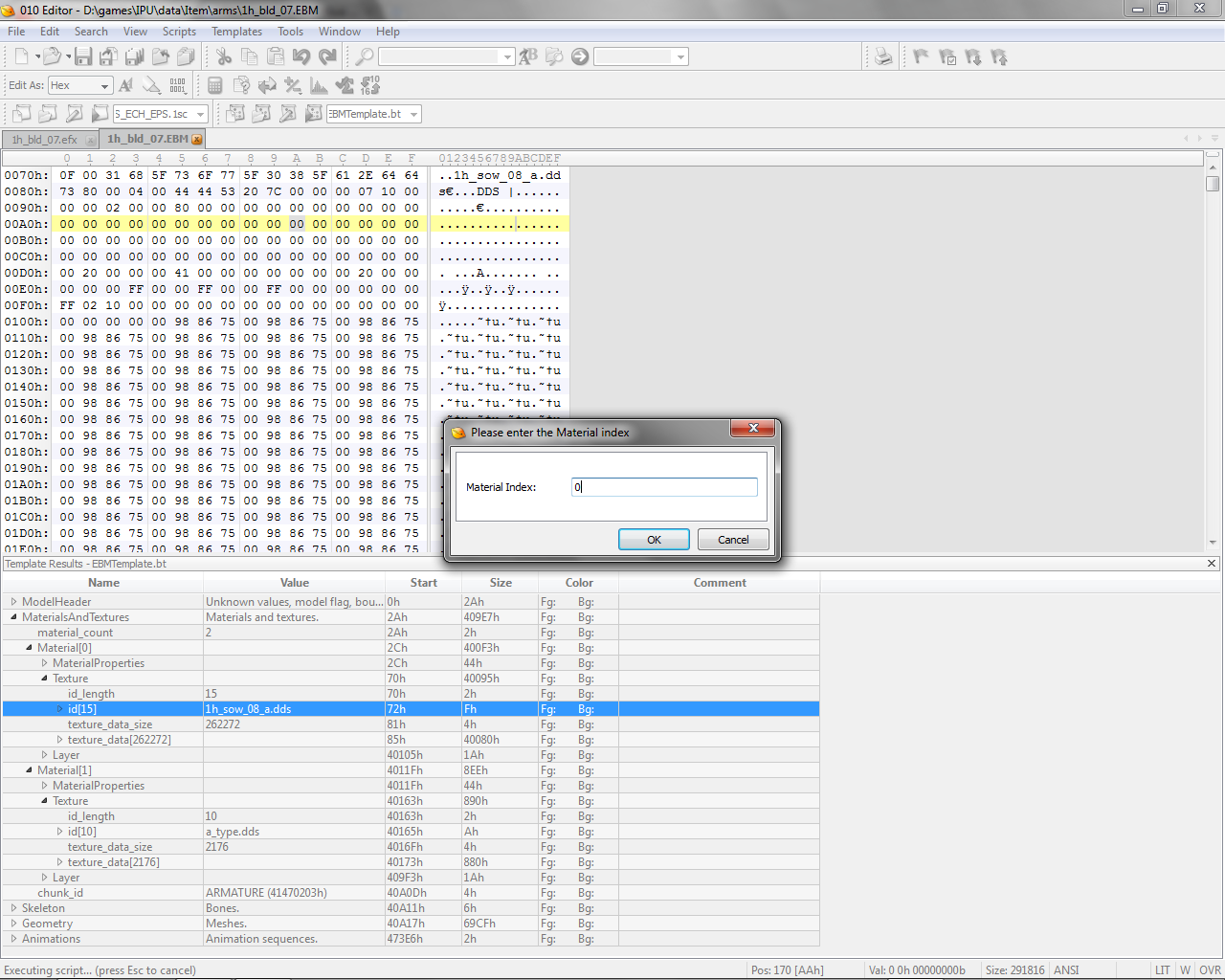
The material index starts from 0 to X. in this case, our files index is 0, so we leave it like that, and press OK, select the edited *.dds file from your Hard Drive, and click OK. The script will edit what's necessary by itself, so after you've done that, just hit CTRL+S to save the file, and you're done