- Joined
- Apr 2, 2009
- Messages
- 257
- Reaction score
- 162
Advanced Server Startup Manager with Crash Monitor & Auto-Restart
What does this Startup do?
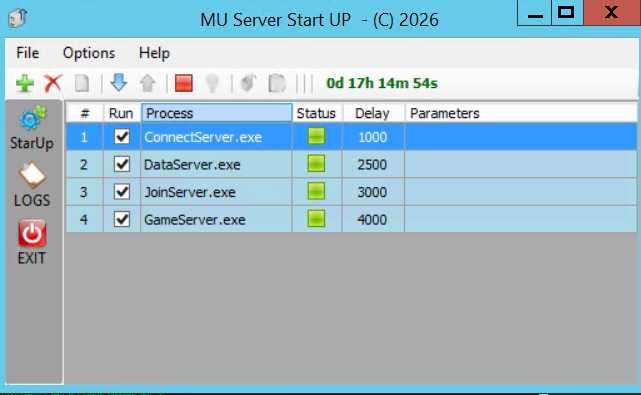
I've had this in my repository for a while, and many of the features were developed by me. It works like other startup managers but includes several extra features that make server management much easier.
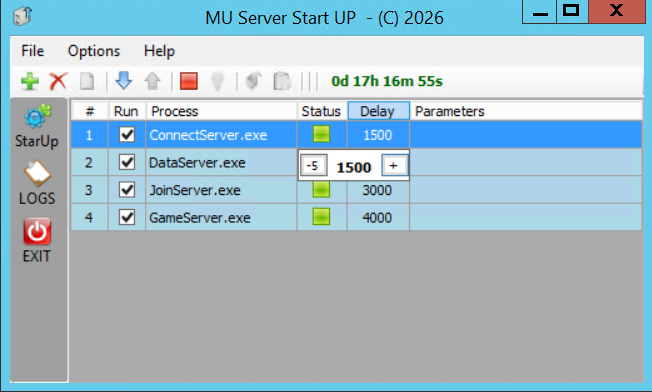
★ Rate Editor Built-In
You no longer need to manually edit XML files. You can now adjust rates directly from the startup interface - easily add or remove +500 or -500 with a single click.
★ Crash Notifications & Auto-Monitor
If a GameServer or any other service crashes, you'll be instantly notified. The system includes a 30-second monitoring interval that checks if executables are running. When a crash is detected, you can receive alerts via:
- Email (SMTP - Gmail recommended)
- Telegram (using your Bot Token and Chat ID)
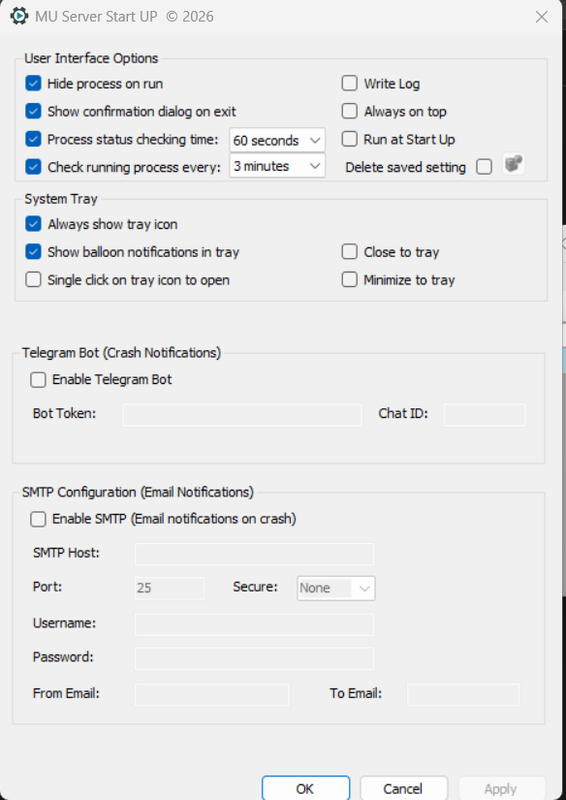
★ Alerts via Telegram & Email
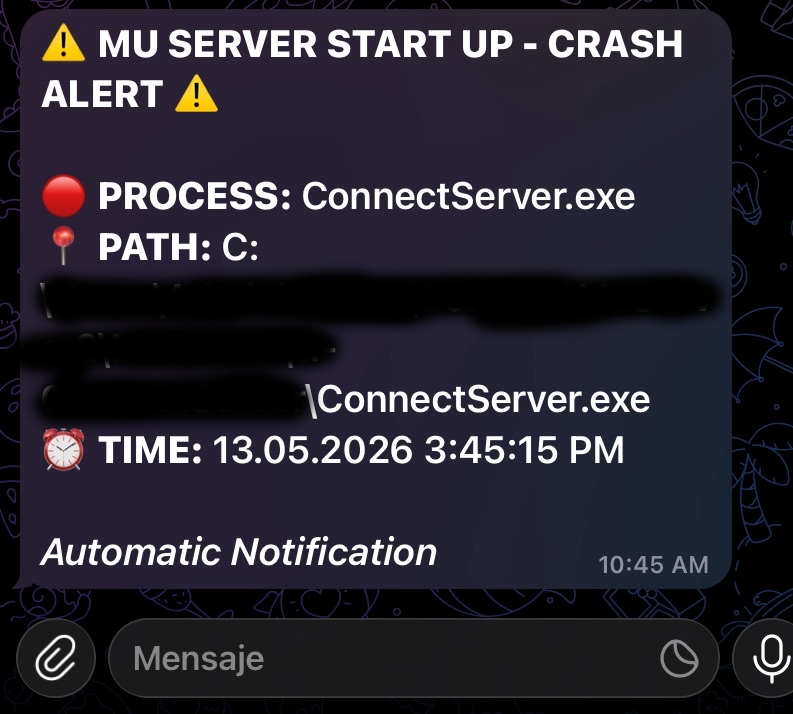
Telegram Notification Example
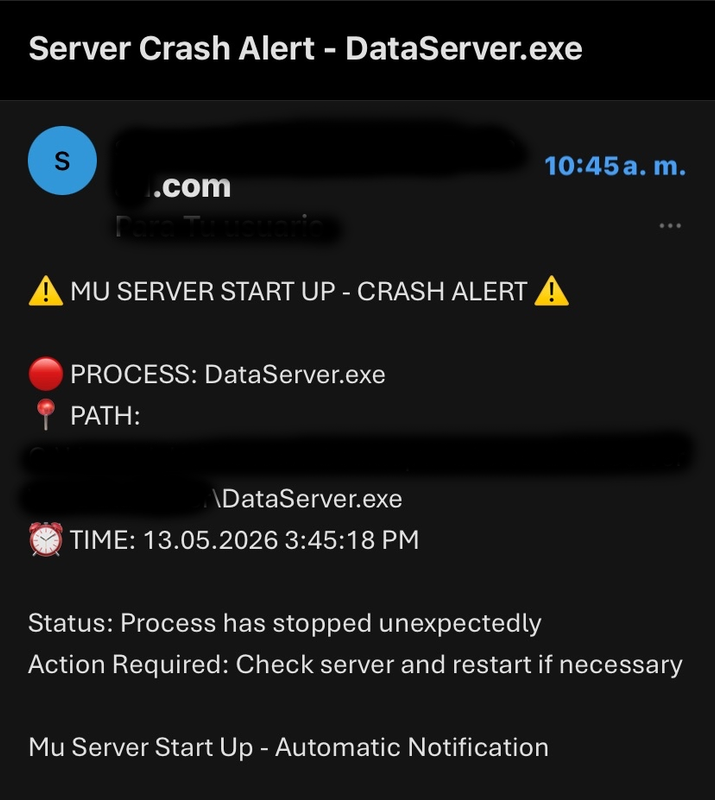
Email Alert Example
★ No Extra Ports Needed
Everything is pre-configured using official APIs:
- Telegram notifications use HttpWebRequest
- Email alerts use SmtpClient
- Only requires standard outbound TLS port access
★ Built on .NET 4.8.1
Provides 100% functionality with enhanced security against attacks and exploits.
★ Server Uptime Timer
Includes a built-in stopwatch that tracks total server online time from the moment you click "Start All". The timer only resets when you perform a full stop.
 Configuration Guide: Telegram Bot & Email Setup
 Telegram Bot Setup
- Open Telegram and search for @BotFather
- Send /newbot
- Give it a name (example: "MyServerBot")
- Choose a username (example:
)Code:
MyServerStartUpBot - You will receive a Token (format example:
)Code:
123456:ABC-DEF1234ghIkl-zyx57W2v1u123ew11
 Get Your Chat ID:
- Send a message to your newly created bot
- Visit:
Code:
https://api.telegram.org/bot<YOUR_TOKEN>/getUpdates - Look for the number in
- that is your Chat IDCode:
"chat":{"id":8167383556 - Alternative bot:
To view the content, you need to sign in or register
 Important: After creating your bot, you MUST send it a message (say "hi" or "/start") before it can notify you!
 Gmail SMTP Configuration
- Server:
Code:
smtp.gmail.com - Port:
(TLS) orCode:
587(SSL)Code:465 - Username: Your full email (example:
)Code:
- Password: You MUST use an App Password
How to create a Gmail App Password:
- Go to Google Account → Security
- Enable 2-Step Verification
- Look for App Passwords and create one
Program Settings:
- SMTP Enabled: ✓ Check
- Host:
Code:
smtp.gmail.com - Port:
Code:
587 - Secure:
Code:
TLS - From: Your email address
- To: Recipient email address
Hotmail/Outlook SMTP Configuration- Server:
Code:
smtp-mail.outlook.com - Port:
(TLS)Code:
587 - Username: Your full email (example:
)Code:
- Password: Your normal Hotmail password
Important Notes:- Gmail requires an App Password (not your normal login password)
- Hotmail works with your normal password
- Port 587 with TLS is the most commonly used configuration
 Test Your Bot Configuration
To view the content, you need to sign in or register
 Download
To view the content, you need to sign in or register
 VirusTotal Scan
To view the content, you need to sign in or register
I will be adding more features to this project. Stay tuned!