- Joined
- Mar 29, 2019
- Messages
- 1,492
- Reaction score
- 3,099
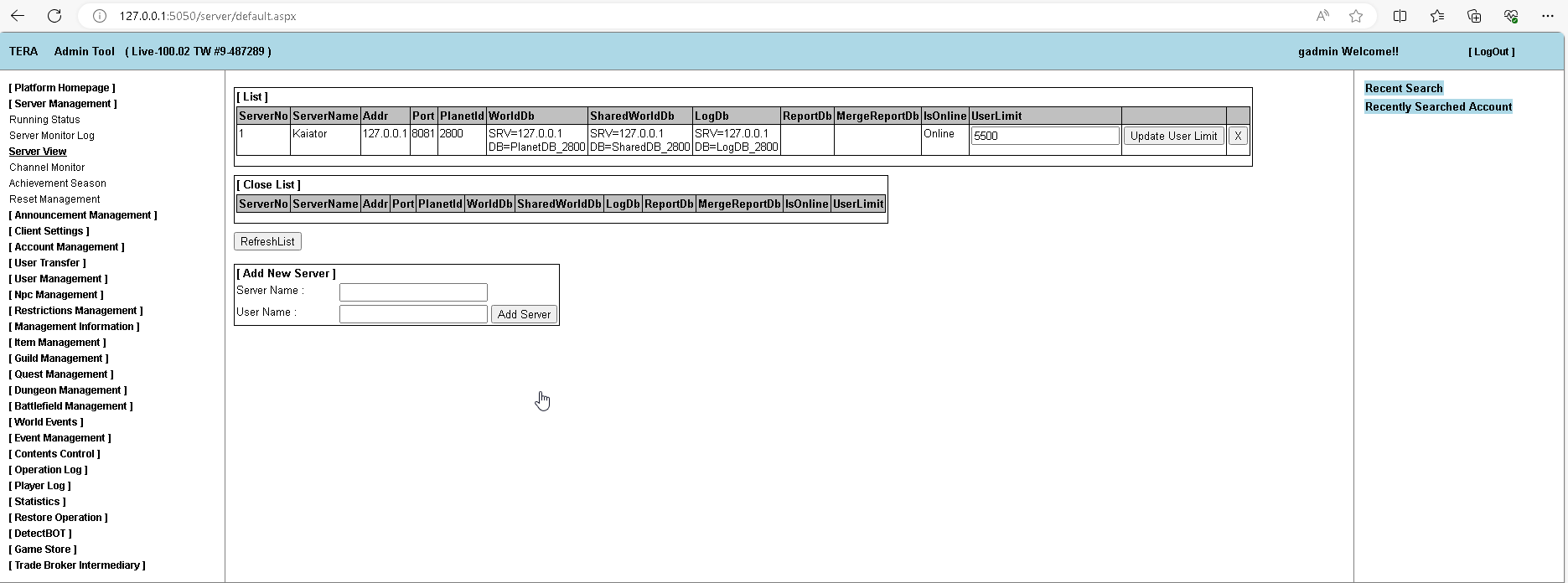
Another version of TERA 100.02 VM created by me.

Info
- VMWare 17.x
- Windows Server 2022
- SQLServer2019 Dev
- 100.02 TW Server files
- ItemClaim Enabled and fully working
- WebApp Enabled and fully working
- Steer & WebApp integration enabled
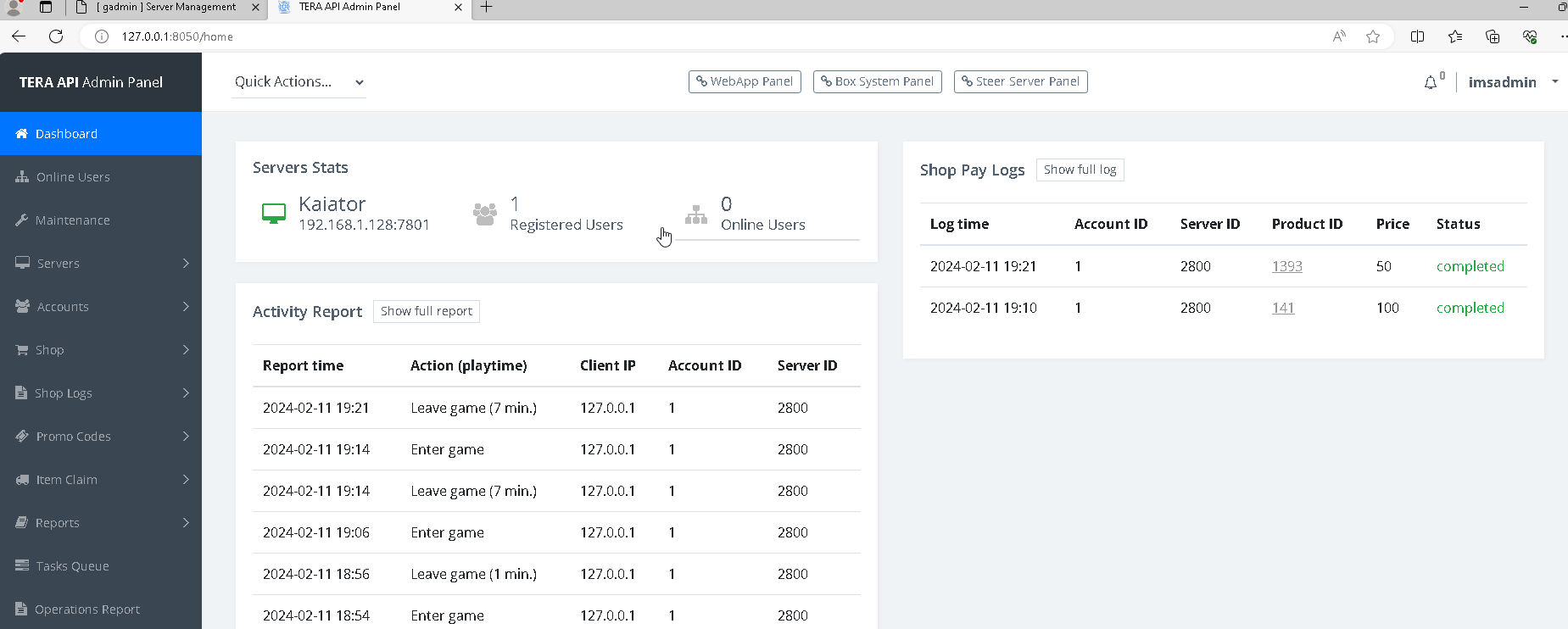
- TERA API
- Working TERA Shop
- TERA Panel
- Novadrop (& novadrop helper included)
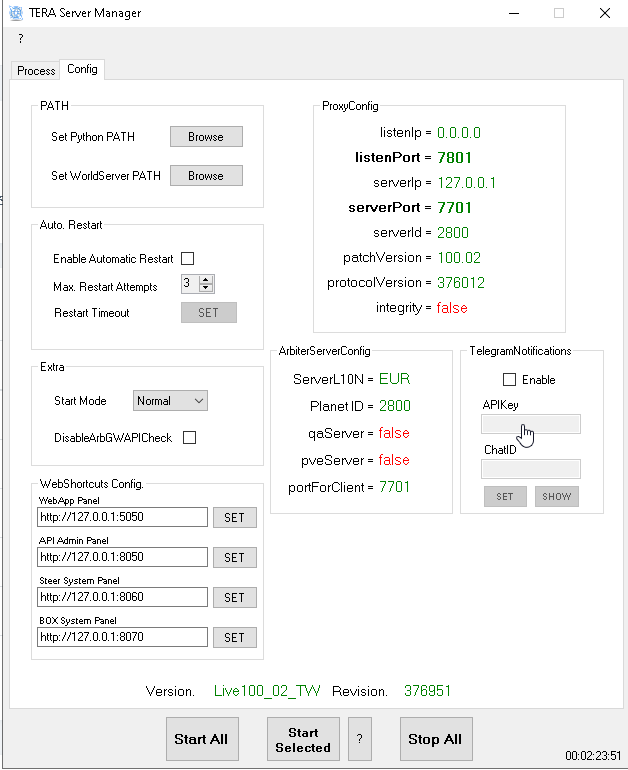
- Proxy Enabled and fully working
- TERA Client Packer configured (AutoPatch Enabled)
- NAT, 192.168.1.128 as static ip
Note: * LogServer not working
I leave a launcher already configured on the Desktop
Note: The only thing that i changed was InputRestrictionData.xml in order to allow EME naming style. Everything else (datasheets) remains untouched.
Last update 11/02/2024
Useful threads
Pack / Unpack *Resources.dat
Pack / Unpack DataCenter*.dat
TERA Clients and Servers Collection
TERA Server Proxy (Allowing GM commands for specific accounts)
TERA API (node.js), Shop and Launcher with Client Patcher
TERA Steer Server + Box Server (Item Claim System)
TERA Server Official Documentation
How to Install TERA Retail Server
(Video) TERA Retail Server Installation | WebApp/Item Claim Setup | Proxy Server Setup

Instruction:
1. Download database file:
2. Open Navicat, go to database PlanetDB_2080, table ProductMarkInfo.
3. Right-click on Import, select XML file point > Next.
4. Import from... select downloaded file ProductMarkInfo.xml > Next.
5. Select tag RECORD > click next, next until import mode.
6. Select a copy point > next > click Start.
Alternative import method...
Info
- VMWare 17.x
- Windows Server 2022
- SQLServer2019 Dev
- 100.02 TW Server files
- ItemClaim Enabled and fully working
- WebApp Enabled and fully working
- Steer & WebApp integration enabled
- TERA API
- Working TERA Shop
- TERA Panel
- Novadrop (& novadrop helper included)
- Proxy Enabled and fully working
- TERA Client Packer configured (AutoPatch Enabled)
- NAT, 192.168.1.128 as static ip
Note: * LogServer not working
I leave a launcher already configured on the Desktop
Note: The only thing that i changed was InputRestrictionData.xml in order to allow EME naming style. Everything else (datasheets) remains untouched.
To view the content, you need to sign in or register
Last update 11/02/2024
To view the content, you need to sign in or register
Useful threads
Pack / Unpack *Resources.dat
Pack / Unpack DataCenter*.dat
TERA Clients and Servers Collection
TERA Server Proxy (Allowing GM commands for specific accounts)
TERA API (node.js), Shop and Launcher with Client Patcher
TERA Steer Server + Box Server (Item Claim System)
TERA Server Official Documentation
How to Install TERA Retail Server
(Video) TERA Retail Server Installation | WebApp/Item Claim Setup | Proxy Server Setup

1. Download database file:
To view the content, you need to sign in or register
(patch 100.02) or
To view the content, you need to sign in or register
(patch 71.03).2. Open Navicat, go to database PlanetDB_2080, table ProductMarkInfo.
3. Right-click on Import, select XML file point > Next.
4. Import from... select downloaded file ProductMarkInfo.xml > Next.
5. Select tag RECORD > click next, next until import mode.
6. Select a copy point > next > click Start.
Alternative import method...
- hsdn
- Replies: 47
- Forum: Tera Tutorials


Last edited: